
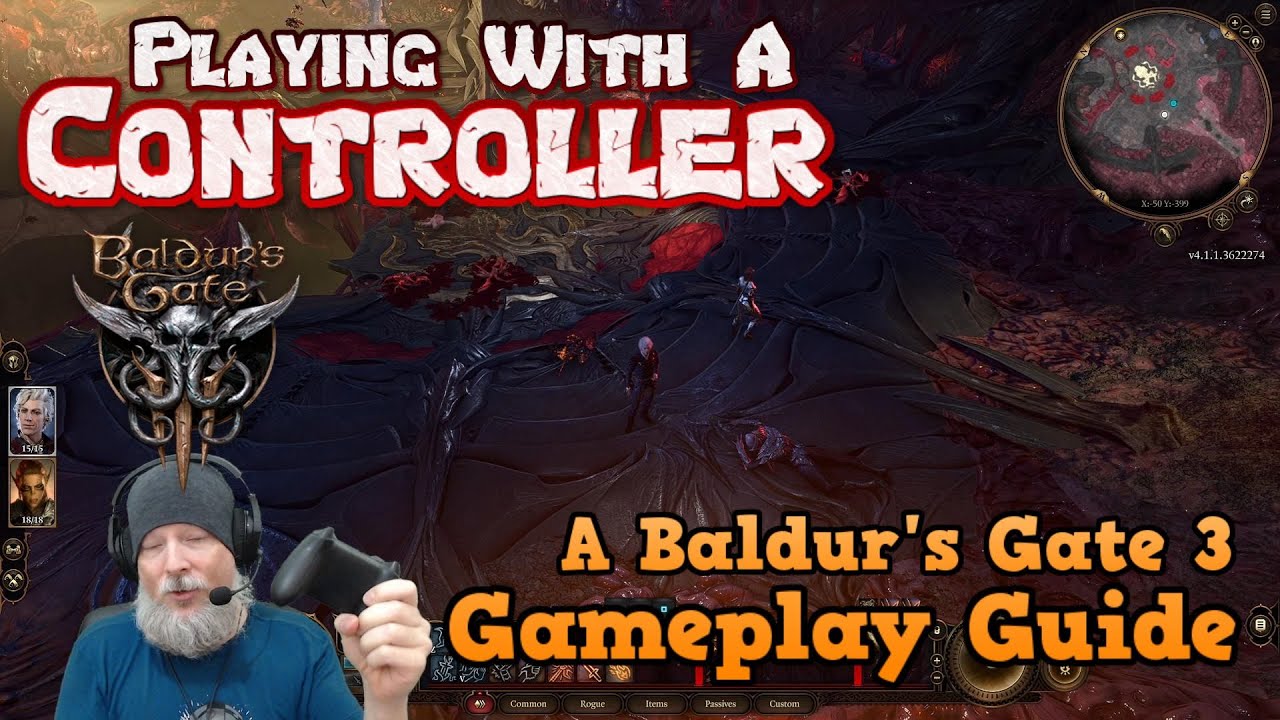
In today’s Baldur’s Gate 3 guide we take a look at how the controller works on the PC. The good news is that it’s freakin’ amazing. Here’s my guide on how to…
Step 1: plug in controller
Step 2: launch game
Step 3: change game input setting to “controller”
Did we need a fucking video for this? Honestly?
No need for step 3. Just press a button on your controller and the game detects it. I’m playing with a controller and it’s amazing so far.
Any way to change layout to PS4 controller? Cause I use one…
I know it works with the PS5 controller and I would think it works with the PS4 controller.
You have to go into the global setting on steam and turn on the PlayStation controller toggle. This let the PS4 control big picture mode.
Then I had to turn OFF the steam input on steam at the manage Baldur’s Gate 3 properties controller. And I got the correct icons in the game.
Thx, that helped. 🙏 Who would though of completely turning it off in properties of game itself…
I had to turn this option OFF for the game Solasta too.
But the game works great with a controller. Have fun!
I’m pretty sure I skipped step 3.
Controller support is great. This guy shows us how well it works.
deleted by creator
I’ve got about ten hours in on a controller (DualSense) on Steam. One thing: you’ll always get Xbox controller icons if Steam Input is enabled. If you disable that in game properties, you’ll get PlayStation icons for PlayStation controllers.
I had to do this too for the correct icons to show up for the PS in the game.
I have an Xbox controller and I own a PS5 with a few controllers. I’ve tried both and like both. I do like the touch pad curser to help click and start the game from the lauch pad. (I hate lauch pads. They don’t work well with Big Picture Mode and 4K TVs.)
deleted by creator
I prefer Vulkan. The Launcher is not a big deal. i just don’t think it’s needed.
Loving the game and Larian.deleted by creator
This probably isn’t what you want to hear but you can make a really really great split setup using SteamInput. The only reason I haven’t used it for the final game is because I play a lot on desktop, not just Deck and I don’t have a steam controller. But on Deck with its trackpads I can access most of the UI and still have the trackpads for selecting items and combat. I guess the only big thing you can’t do is move the party with the left stick, but they didn’t bother me too much. I think I might prefer it to either purely kb/m or controller setups.
I’ll save you 20 minutes. Launch it from Steam’s Big Picture mode.
Removed by mod
I love playing from my couch with a controller! I work in front of my computer all day and afterwards I really don’t want to spend more time there.
The only problem I’ve found (besides minor bugs) is that after you go up a few levels the action wheels are a complete unorganized mess. I hope Larian adds some way of auto-arranging them into actions, bonus actions, spells, etc. like the hotbar does.
There is a way to customize each wheel. Look to the right when the wheels are up and there is a button that lets you do that.
Yes, you can manually assign each wheel slot, but when you have a few dozen spells and actions it’s really long and boring. I’d like it more if it behaved like the hotbar, with things sorted automatically and space for personal favorites.
I can get behind an auto sort for Spells, Actions, Bonus Actions, and items.
I think Larian reads and listens to feedback on their forums.
I need to test it out on my steamdeck. just been playing on desktop so far. DOS2 had lovely controller support
It doesn’t look great, but it runs super well and it plays really well. I recommend it
Has anyone tried the steam controller, steam link to tv combo?
It has been a while that I used this at all but this could be a good game for it.
Even if it’s a bit slower here and there due to steam link this could be a game where it does not hurt.
deleted by creator
I did a quick test with joystick on the right track pad. Reduced friction and trackball mode so you can push and let it turn until you stop it again. It’s playable but it’s full controller mode.
Action and reaction is not so crucial here which is why it’s okay for me.
Can you maybe fully disable controller mode and put only mouse and keyboard shortcuts onto the steam controller?
I played early access that way with the Stream Controller/Deck before the real controller support was added. It works pretty well but takes a lot of setup to get feeling right. The controller support works right away but has limitations mainly with selection and menus.
Personally I’ve switched to controller UI as it is easier to keep track of what buttons do when they are shown on the screen. Pressing X when it says X is easier than pressing X when it says left shift. Split input would be best of both worlds but for now either way works depending on what it more important for you.
deleted by creator